
How to Remove Background from Images Online Free (2026 Guide)
Remove photo backgrounds in your browser—no Photoshop signup. Step-by-step guide for product photos, profiles, and designs using Toolifyx’s free background remover.
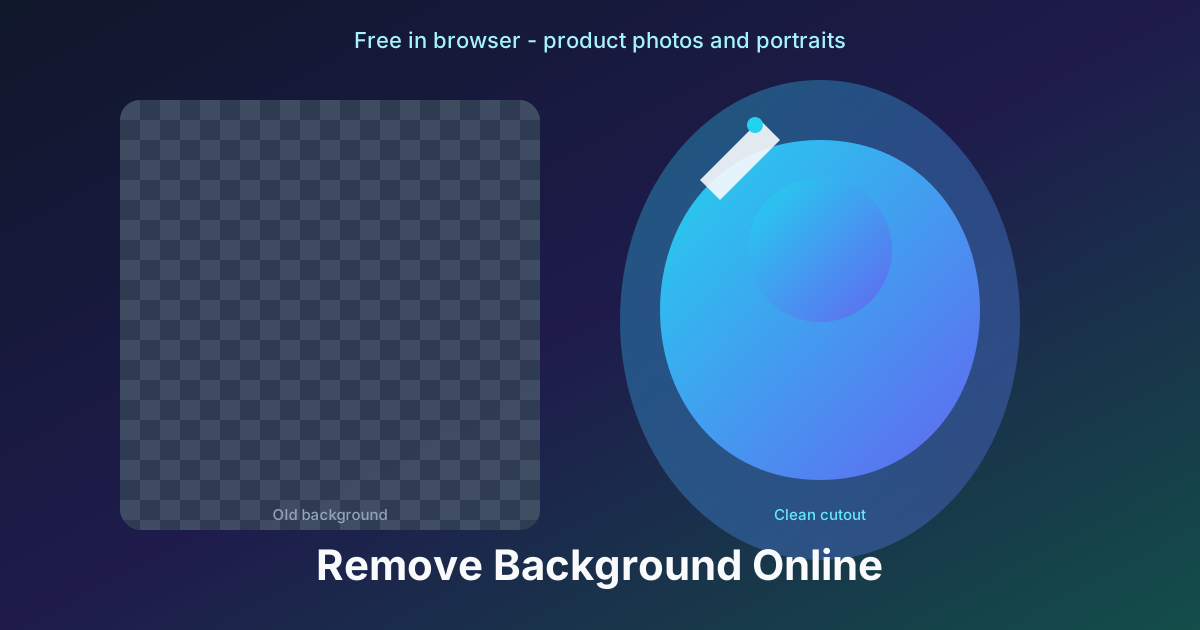
A cluttered background steals attention from the thing you actually want people to see: the product, the person, or the logo. If you have ever tried to remove background from an image online free, you have probably hit paywalls, watermarks, or tools that mangle hair and glass.
This guide shows you a fast, private workflow with Toolifyx—plus practical tips so your cutouts look professional on Amazon, Etsy, LinkedIn, and your own website.
Who this is for
You do not need design school to get a clean cutout. This workflow helps if you are:
- Selling online and need white or neutral product tiles
- Updating a LinkedIn or portfolio headshot without hiring a retoucher
- Building slides, thumbnails, or ads where the subject must sit on a brand color
- Running a side hustle and trying to ship listings faster (time = money)
If that sounds like you, a browser-based background remover beats installing heavy software for one-off tasks.
Why “free background removal” still costs you time
Many apps advertise free removal but charge for HD export, batch files, or commercial use. Others upload your photos to unknown servers—awkward for client work or unreleased products.
Toolifyx runs the cutout in your browser. Your file is not sent to our servers for storage. That matters when you are iterating on a launch catalog at 11 p.m. and do not want assets sitting in someone else’s cloud.
Step-by-step: remove a background with Toolifyx
- Open the Background Remover tool on Toolifyx.
- Upload a JPG, PNG, or WebP photo (clear subject + simple backdrop = best results).
- Wait for processing—usually seconds on a modern laptop or phone.
- Preview the cutout. If edges look rough, try a photo with more contrast behind the subject.
- Download your result (often a PNG with transparency, depending on export options).
Pro tip: Shoot product photos on a plain sheet or wall. You will spend less time fixing fringe pixels later.
How to get sharper edges (especially hair and glass)
Automatic removal is smart, but physics still wins. Use these habits before you upload:
| Situation | What helps |
|---|---|
| Hair or fur | Soft, even light; avoid busy wallpaper directly behind the head |
| Products on a table | Raise the item slightly; use a sweep or poster board behind it |
| Glass or shiny metal | Slight angle change reduces harsh reflections into the backdrop |
| Clothing similar to the wall | Add a step of distance or use a contrasting backdrop color |
After removal, drop the cutout onto your brand background in Canva, Figma, or your store admin—then export once at the size the platform requires.
What to do after you remove the background
A transparent PNG is rarely the last step. Here is a sensible pipeline:
1. Resize for the platform
Amazon, Shopify, and social feeds all want different dimensions. Use the Image Resizer to hit exact pixel widths without stretching.
2. Compress before upload
Large PNGs slow pages and hurt SEO. Run exports through the Image Compressor—start around 80% quality for photos; only go lower if file size still blocks upload.
3. Keep a master file
Save one high-quality PNG with transparency in a folder named by SKU or project. Generate marketplace sizes from that master so you never re-cut the same product.
Real use cases that drive traffic and sales
Ecommerce listings
Marketplaces reward consistent grids: same padding, shadow style, and background color. Remove the background once, place the product on white or brand color, then compress. Shoppers scroll faster when every tile feels cohesive.
Freelancers and agencies
Send a preview cutout to clients before full retouching. Browser tools are perfect for “direction approval” rounds—you are not billing Photoshop hours for a maybe.
Content creators
YouTube thumbnails and blog heroes pop when the subject is isolated. Pair a cutout with a bold gradient (Toolifyx blog cover style) and readable headline text.
Job seekers
A clean headshot on a neutral or soft gradient background reads more professional than a messy room behind you. Remove the background, then export a square crop for LinkedIn.
Remove background online vs. Photoshop
| Browser tool (Toolifyx) | Desktop Photoshop | |
|---|---|---|
| Cost | Free tier for everyday tasks | Subscription |
| Learning curve | Minutes | Steeper |
| Privacy | Processing on your device | Local if you keep files local |
| Best for | Quick listings, social, drafts | Pixel-perfect compositing, print |
For daily “get this listing live” work, the browser wins. For magazine retouching, Photoshop still earns its seat.
Common mistakes (and quick fixes)
- Uploading a tiny image — Start from the largest source you have; upscaling after removal looks soft.
- Ignoring shadows — A floating product looks fake. Add a soft shadow in your design tool.
- Forgetting alt text — After you publish, describe the product in alt text for accessibility and image SEO.
- Skipping compression — A 4 MB PNG hero image hurts load time; compress before go-live.
PDF and business tools on the same site
Image work often sits next to paperwork. When you are done with photos, Toolifyx also offers:
- Merge PDF — combine invoices, briefs, and scans
- Split PDF — pull one chapter or page out of a large file
- Compress PDF — email-friendly document size
- Free Invoice Generator — bill clients after you deliver creative work
- Resume Builder — if you are job hunting while freelancing
One bookmark, multiple tasks—that is the point of an all-in-one toolkit.
FAQ
Is it really free to remove backgrounds online?
Yes for typical personal and small-business use on Toolifyx. Open the tool, process your image, and download without installing desktop software.
Will my photos be stored on your servers?
The background remover is designed to run in your browser session. We do not warehouse your uploads for this workflow.
Can I use cutouts for commercial product listings?
You are responsible for rights to the original photo and your marketplace’s rules. The tool provides pixels; your license and terms govern commercial use.
Why does hair sometimes look jagged?
Fine detail is the hardest case. More contrast between subject and backdrop, plus even lighting, beats aggressive editing every time.
What file format should I download?
PNG with transparency is standard for web and design tools. Compress or convert to JPEG only when the destination does not need transparency.
Grow visibility: pair content with tools
Google does not index dreams—it indexes useful pages people click. Publishing guides like this one (and using the tools they link to) sends clear signals:
- You solve real queries (“remove background online free”)
- Your site updates regularly (blog + tools)
- Internal links help crawlers discover tool URLs
After you publish, open Google Search Console, inspect your new post URL, and click Request indexing. Do the same for each tool page once your www redirects are live.
Try it now
Open the Background Remover, test one product or portrait photo, and compare before/after at full zoom. If you already read our image compression guide, you have the full pipeline: cut out → resize → compress → publish.
That is how you ship faster, look more professional, and give search engines more reasons to send traffic your way.
Related articles
 Image Tools
How to Compress Images Online Without Losing Quality
A practical guide to shrinking JPG, PNG, and WebP files for websites and email — using Toolifyx and smart quality settings.
- image compression
- web performance
- SEO