
How to Compress Images Online Without Losing Quality
A practical guide to shrinking JPG, PNG, and WebP files for websites and email — using Toolifyx and smart quality settings.
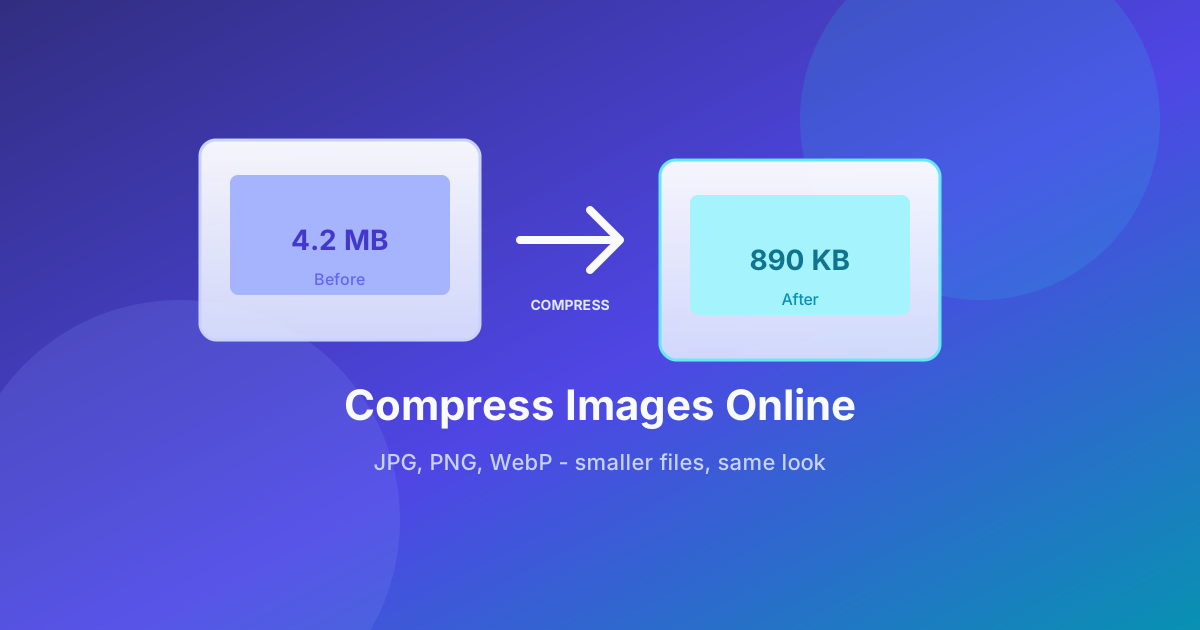
Heavy images slow down your site, hurt Core Web Vitals, and get rejected by upload forms. The good news: you can compress images online in seconds without opening Photoshop — as long as you understand what “quality” actually means.
Why file size matters for SEO
Search engines reward pages that load quickly on mobile networks. Large hero images and unoptimized product photos are often the biggest culprit. Compressing before you upload to WordPress, Shopify, or a custom Next.js app is one of the highest-ROI habits you can build.
| Goal | What to do |
|---|---|
| Faster LCP | Compress hero images under ~200 KB when possible |
| Email attachments | Stay under provider limits (often 10–25 MB total) |
| Marketplaces | Match platform dimension and file-size rules |
Step-by-step: compress with Toolifyx
- Open the Image Compressor tool.
- Upload a JPG, PNG, or WebP file (processing stays in your browser).
- Set the quality slider — start around 75–85 for photos; lower only if you need a smaller file.
- Preview the result, then download the compressed image.
Tip: PNG screenshots with text often compress better as JPEG only when you accept slight softness on edges.
Quality vs. size: what to expect
Lossy compression removes data the eye rarely notices at normal viewing distance. If you push quality too low, banding appears in skies and faces look waxy. If you keep quality high, you still often save 30–60% compared to an untouched export from a camera or design tool.
When to resize as well
Compression reduces encoding efficiency; resizing reduces pixel count. For blog heroes, combine both:
- Resize to the display width you actually need (e.g. 1200px wide).
- Then compress with a moderate quality setting.
Use our Image Resizer when a platform specifies exact dimensions.
Batch workflows
Publishing many assets? Switch to Many images (ZIP) mode on the compressor to process a set with the same quality and download one archive — ideal for product catalogs and documentation screenshots.
Common mistakes
- Uploading 4000px-wide images when the layout only shows 800px.
- Re-compressing the same JPEG many times (quality stacks).
- Forgetting alt text and descriptive filenames after optimization (SEO still needs those).
Wrap-up
Smart compression keeps your site fast and your visuals sharp. Bookmark Toolifyx for daily image, PDF, and text tasks — and check back on this blog for more guides on merge, split, and compress workflows.
Next read: try PDF Compress when attachments need to shrink without a desktop app.
Related articles
 Image Tools
How to Remove Background from Images Online Free (2026 Guide)
Remove photo backgrounds in your browser—no Photoshop signup. Step-by-step guide for product photos, profiles, and designs using Toolifyx’s free background remover.
- remove background online
- transparent PNG
- product photography